Everything About Smart TV Boxes: Software, Firmware, and Optimization
Modern Smart TV boxes (Android TV Boxes, multimedia streamers, and hybrid receivers) transform any standard TV or monitor into a versatile home entertainment center. They provide unlimited access to popular streaming services, online cinema platforms, IPTV streaming, and interactive apps. However, smooth, high-speed, and secure performance relies directly on up-to-date and reliable firmware.
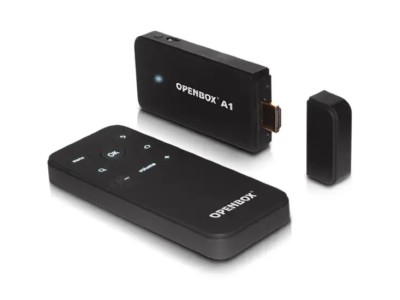
The Smart TV Boxes category on SatHub brings together an extensive database of verified official and custom firmware releases, flashing utilities, and detailed tutorials. Here you will find tested software files for popular TV box models, including Openbox, X96, Tanix, Xiaomi, Mecool, and hybrid DVB-T2/S2 platforms.
Why Should You Update Your Smart TV Box Firmware?
Regular firmware updates help fix common performance issues and unlock the full potential of your streaming device:
- Fixing lags and system errors: system-level optimizations speed up the user interface, eliminate frame drops in video playback, and resolve random reboots.
- Compatibility with modern apps: upgrading Android or core system libraries ensures stable operation for YouTube, streaming platforms, IPTV players, and media centers like Kodi.
- Enhanced codec and format support: adding updated video and audio codecs (AV1, VP9, H.265/HEVC, Dolby Digital, AC3) guarantees seamless 4K Ultra HD playback.
- Unbricking & device recovery: stock recovery ROMs and flashing tools for USB or PC help resurrect unresponsive boxes after software failures or failed updates.
How to Flash and Update Your Smart TV Box Correctly
Before flashing, verify the exact hardware revision, motherboard code, and chipset type (Amlogic, Allwinner, Rockchip, etc.) of your unit:
- Download the required firmware package from the designated device page on SatHub.
- Prepare a reliable USB drive formatted in FAT32.
- Copy the firmware image/archive to the root directory of the USB drive without renaming it (unless instructed otherwise).
- Trigger the upgrade process via the system update menu or Recovery Mode according to our step-by-step tutorial.
Helpful Resources and Support on SatHub
In addition to firmware archives, SatHub provides updated channel lists, m3u IPTV playlist configurations, BISS keys, and bootloader repair utilities. Check back frequently for new software releases to keep your TV box running at peak performance.

 Firmware